
- 신규로 표시
- 북마크
- 구독
- 소거
- RSS 피드 구독
- 강조
- 인쇄
- 부적절한 컨텐트 신고
So whenever I update my drivers, the screen goes black quite often to the point where I can't do anything because before it blinks, it lags the computer. So getting around it takes time. However, there's another problem whenever the screen does go black, most times it displays a notification that something gets blocked by the graphics hardware. For example it would say "(PLACE HOLDER) has been blocked from accessing graphics hardware". The reason there's a place holder; is because it says lots of things like: Windows operating System, SearchrUI.exe, StartmenuExper, systemsettings, etc. I want to update my Drivers so I can play the games I want, but when I play them on the old drivers the screen starts glitching. It doesn't matter what game I'm running: Microsoft store games; third party games like League of Legends, Minecraft and the Microsoft Store game Ylands. I've tried many things like going into safe mode and turning off settings and even factory resetting but nothing seems to work. Any help would be greatly appreciated!
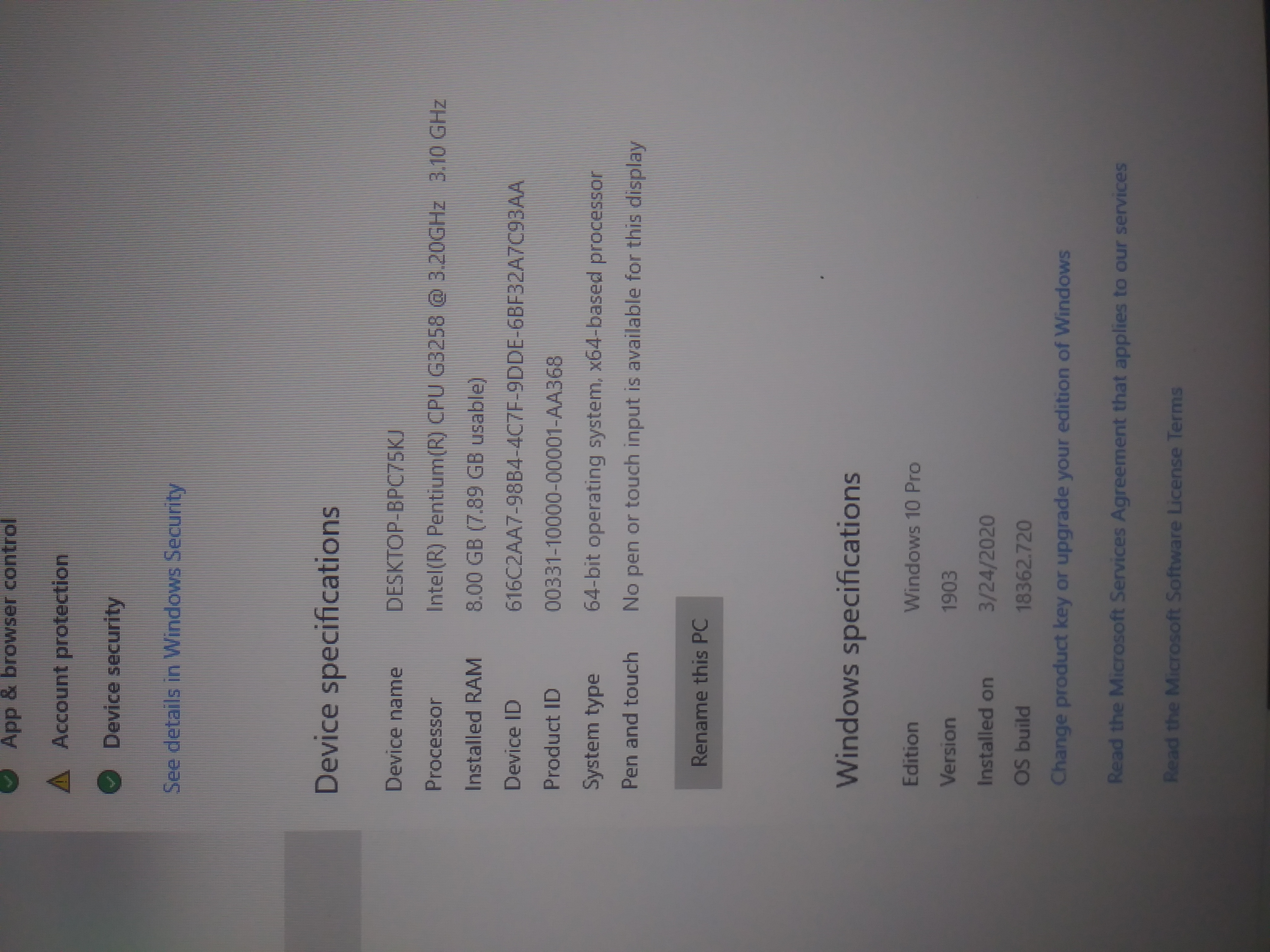
Picture below also the specs, Driver version that causes it is 15.40.45.5126 The version i have is 20.19.15.4835
or the link: https://downloadcenter.intel.com/download/29474

- 신규로 표시
- 북마크
- 구독
- 소거
- RSS 피드 구독
- 강조
- 인쇄
- 부적절한 컨텐트 신고
Hello JCole32,
Thank you for all the information provided.
I want to recommend you a clean installation of the graphics drivers. Try performing the below steps:
1. Disconnect your unit from the Internet.
2. Uninstall both the Intel Graphics driver and the Intel Display audio driver. To do this, please follow the steps on the link below under these sections:
- Uninstalling the Intel Graphics Driver via the Device Manager Method
- Uninstalling the Intel®️ Display Audio Driver or the Intel®️ HDMI Audio Driver via the Device Manager Method.
- https://www.intel.com/content/www/us/en/support/articles/000005598/graphics-drivers.html
3. Restart your computer. Go to Windows* Device Manager and check if Windows* installed another version of the graphics driver. If it does, please remove it and restart your computer one more time.
Note: Repeat this process until you get the Microsoft Basic Display Adapter.
4. Once you do, please proceed with the clean installation of the latest graphics driver version: 15.40.45.5126
Install an Intel®️ Graphics Driver in Windows®️ 10 and Windows 8*/8.1*.
Option 2: Manual Installation
5. Once the latest driver has been installed, you may enable the internet connection again.
Best regards,
Maria R.
Intel Customer Support Technician
링크가 복사됨


- 신규로 표시
- 북마크
- 구독
- 소거
- RSS 피드 구독
- 강조
- 인쇄
- 부적절한 컨텐트 신고
Nowhere in your post did you provide any information about your device.
Doc
- 신규로 표시
- 북마크
- 구독
- 소거
- RSS 피드 구독
- 강조
- 인쇄
- 부적절한 컨텐트 신고
Sorry i updated it with a picture all it says is Intel Pentium CPU G3258 with 3.20GHz only 3.10 usable.
- 신규로 표시
- 북마크
- 구독
- 소거
- RSS 피드 구독
- 강조
- 인쇄
- 부적절한 컨텐트 신고
Hello JCole32,
Thank you for posting in the Intel* Community,
Please, provide the below information:
- Specific driver version that causes the screen goes black.
- Specific games that you are trying to run.
- DxDiag report:
- Go to Start > Run or Windows Key + R.
- On the Run prompt, type "dxdiag" then click OK.
- On the DirectX Diagnostic Tool window, click on Save All Information.
- Browse to a folder, type in a filename then click Save.
Best regards,
Maria R.
Intel Customer Support Technician
- 신규로 표시
- 북마크
- 구독
- 소거
- RSS 피드 구독
- 강조
- 인쇄
- 부적절한 컨텐트 신고
Hello JCole32,
Thank you for all the information provided.
I want to recommend you a clean installation of the graphics drivers. Try performing the below steps:
1. Disconnect your unit from the Internet.
2. Uninstall both the Intel Graphics driver and the Intel Display audio driver. To do this, please follow the steps on the link below under these sections:
- Uninstalling the Intel Graphics Driver via the Device Manager Method
- Uninstalling the Intel®️ Display Audio Driver or the Intel®️ HDMI Audio Driver via the Device Manager Method.
- https://www.intel.com/content/www/us/en/support/articles/000005598/graphics-drivers.html
3. Restart your computer. Go to Windows* Device Manager and check if Windows* installed another version of the graphics driver. If it does, please remove it and restart your computer one more time.
Note: Repeat this process until you get the Microsoft Basic Display Adapter.
4. Once you do, please proceed with the clean installation of the latest graphics driver version: 15.40.45.5126
Install an Intel®️ Graphics Driver in Windows®️ 10 and Windows 8*/8.1*.
Option 2: Manual Installation
5. Once the latest driver has been installed, you may enable the internet connection again.
Best regards,
Maria R.
Intel Customer Support Technician
- 신규로 표시
- 북마크
- 구독
- 소거
- RSS 피드 구독
- 강조
- 인쇄
- 부적절한 컨텐트 신고
I apologize for the late response. However, I tried the steps you told me and they worked like a charm. Thank you for your assistance!
- 신규로 표시
- 북마크
- 구독
- 소거
- RSS 피드 구독
- 강조
- 인쇄
- 부적절한 컨텐트 신고
Hello JCole32,
We are glad to know that the issue was resolved. If you need further assistance, please let us know. We will be glad to help you.
Best regards,
Maria R.
Intel Customer Support Technician
