
- Mark as New
- Bookmark
- Subscribe
- Mute
- Subscribe to RSS Feed
- Permalink
- Report Inappropriate Content
Link Copied

- Mark as New
- Bookmark
- Subscribe
- Mute
- Subscribe to RSS Feed
- Permalink
- Report Inappropriate Content
Hi @JiRo1
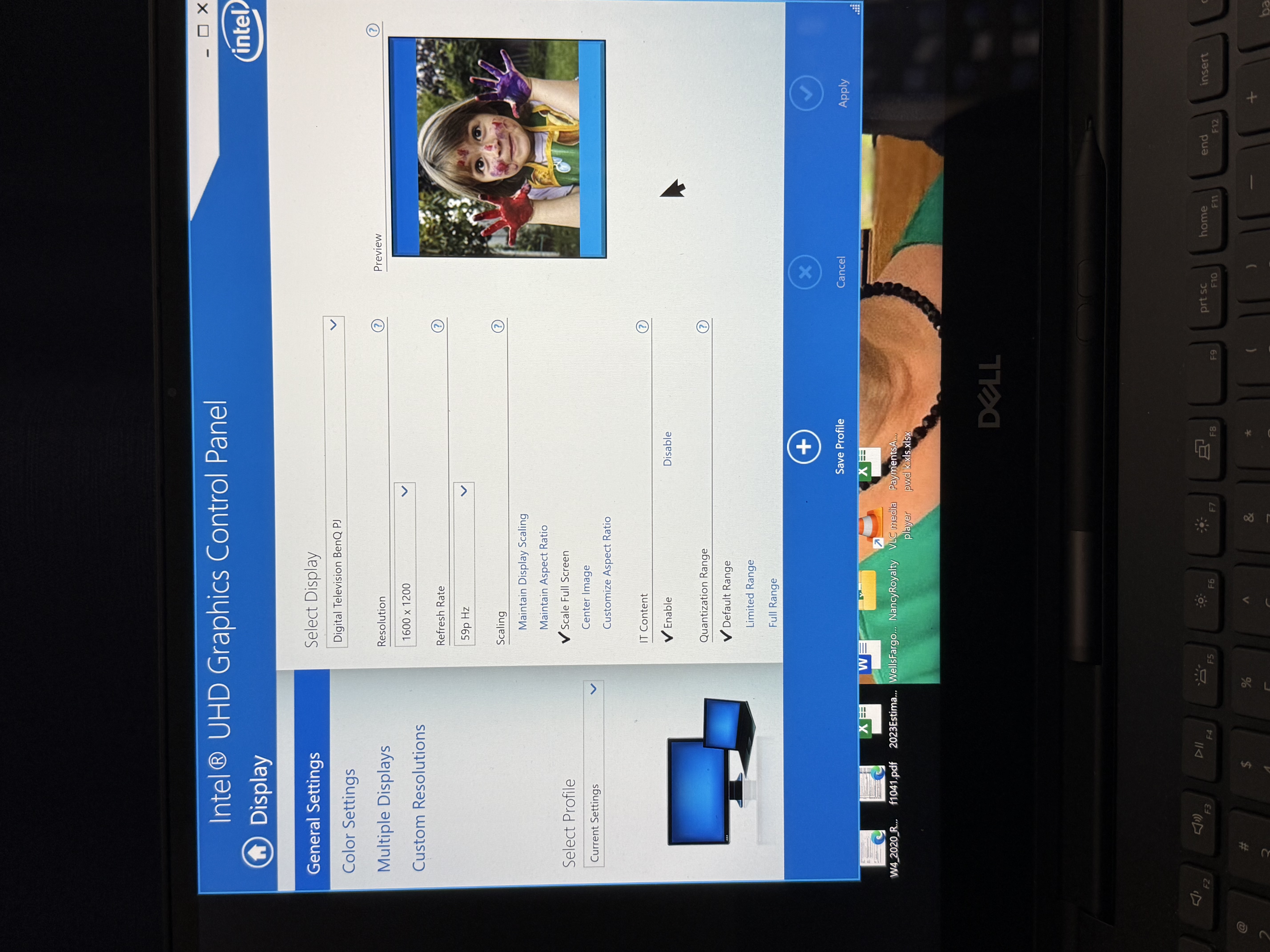
Download and install the Intel Graphics Control Panel to regain the Scale Full Screen option.
Leon
- Mark as New
- Bookmark
- Subscribe
- Mute
- Subscribe to RSS Feed
- Permalink
- Report Inappropriate Content
Hi LeonWaksman, will this Intel Graphics Control Panel work with Windows 11 OS and Intel Ultra 7 processor?
Thanks,
JiRo1
- Mark as New
- Bookmark
- Subscribe
- Mute
- Subscribe to RSS Feed
- Permalink
- Report Inappropriate Content
I have a solution, though not ideal.
I found that Intel Graphics Command Center/Scale has two options (Maintain Display Scaling & Custom) from the drop up window when my 2nd display is connected (projector display) with 1600x1200 resolution as set in the Windows/Settings/Display/Scale&Layout - Display Resolution. (I need the 4:3 aspect ratio to transfer my app image to the projector.) But when I lower the resolution to 800x600 (4:3) or to 1024x768 (also 4:3), the Graphics Command Center/Scale now has 5 options: 1) Centered, 2) Stretched, 3) Maintain Aspect Ratio, 4) Maintain Display Scaling, and 5) Custom. (Sometimes when these resolution are selected, "Maintain Display Scaling" option is missing. Don't understand the rhyme of this.)
When I select "Stretched", the projected image goes from 4:3 to 1:1 (projector screen fill ratio user setting) and fills up my square screen. Voila!
So this solution isn't ideal since I can't use the max 4:3 resolution of 1600x1200. So my Intel Case will remain open.
Hope this helps others,
JiRo1

- Mark as New
- Bookmark
- Subscribe
- Mute
- Subscribe to RSS Feed
- Permalink
- Report Inappropriate Content
Hi JiRo1,
Thank you for posting in the Community!
I understand that you have a laptop. Since this is an OEM (Brand) original equipment manufacturer device, please take into consideration that our support may be limited since we are not familiar with the technology, settings, customizations, custom drivers, and features that the OEM has designed and installed your system.
You may look up into these links for your reference:
Scale Options Are No Longer Available After Updating the Intel®...
Error: "Custom Resolution is Not Supported on Internal...
I suggest trying the following from your OEM:
Troubleshooting HP Laptop Screen Display Issues: A Comprehensive Guide
Best regards,
Dean R.
Intel Customer Support Technician
- Mark as New
- Bookmark
- Subscribe
- Mute
- Subscribe to RSS Feed
- Permalink
- Report Inappropriate Content
Hi JiRo1,
I wanted to follow up on the previous message regarding your inquiry. Have you had a chance to review it? If you have any questions or need further information, please let me know.
Best regards,
Dean R.
Intel Customer Support Technician
- Mark as New
- Bookmark
- Subscribe
- Mute
- Subscribe to RSS Feed
- Permalink
- Report Inappropriate Content
Hi JiRo1,
Since I haven't received a response from you, I will be closing this inquiry. If you need further assistance, please submit a new question, as this thread will no longer be monitored.
Best regards,
Dean R.
Intel Customer Support Technician

- Subscribe to RSS Feed
- Mark Topic as New
- Mark Topic as Read
- Float this Topic for Current User
- Bookmark
- Subscribe
- Printer Friendly Page