
- Mark as New
- Bookmark
- Subscribe
- Mute
- Subscribe to RSS Feed
- Permalink
- Report Inappropriate Content
Hey i have tried using GPA with Xbox App (I have microsoft game pass for PC) but the program doesnt seem to work for this.
Has anyone successfully loaded a game from microsoft XBox app and played correctly with the GPA loaded.
Thanks
Link Copied
3 Replies

- Mark as New
- Bookmark
- Subscribe
- Mute
- Subscribe to RSS Feed
- Permalink
- Report Inappropriate Content
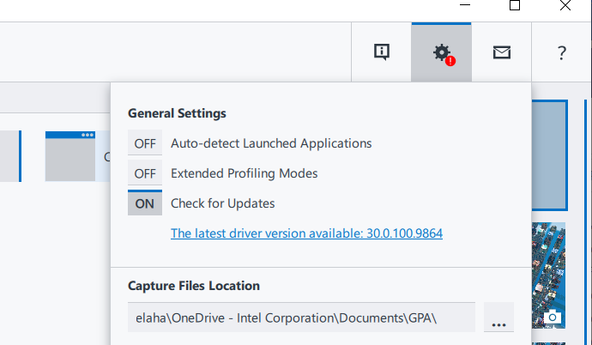
Doonga - did you enable "Auto-detect Launched Applications" in Graphics Monitor settings?
- Mark as New
- Bookmark
- Subscribe
- Mute
- Subscribe to RSS Feed
- Permalink
- Report Inappropriate Content
- Mark as New
- Bookmark
- Subscribe
- Mute
- Subscribe to RSS Feed
- Permalink
- Report Inappropriate Content
Have you tried the steps in the docs? There are a few different things you can try. Detailed steps are here: https://www.intel.com/content/www/us/en/develop/documentation/gpa-user-guide/top/launch-application-for-analysis.html
One of the things you can try is dictate which applications GPA will/will not connect to:
Attach to Specific Processes
Once you enable the Auto-detect Launched Applications option, Intel GPA connects to all the processes that use graphics APIs (DirectX*, Vulkan*), including web browsers and non-game applications. To change this, specify the applications that you want/do not want to profile with Intel GPA, once you start them:
- Turn off Automatic detection using Graphics Monitor.
- Go to the Intel GPA installation directory. By default, it is C:\Program Files\IntelSWTools\GPA.
- Add the application names you want to analyze to the InjectionList.txt file or add the application you do not want to analyze to InjectionSkipList.txt. When specifying file names, use the wildcard "*" to replace 0 or more characters, and skip the .exe extension. Example: "my*game", "basichlsl*".
-
Save the files.
- In the Graphics Monitor Settings dialog box, turn on Auto-detect Launched Application.
As a result, whenever your application listed in InjectionList.txt starts, Intel GPA gets attached to that process and the HUD is enabled. The tool automatically displays metrics as an overlay on the application window. Applications listed in the
InjectionSkipList.txt are not attached to Intel GPA.
If the InjectionList.txt file contains at least one item, the
InjectionSkipList.txt file and all other running applications are ignored.
Let me know what you find.
Pamela

Reply
Topic Options
- Subscribe to RSS Feed
- Mark Topic as New
- Mark Topic as Read
- Float this Topic for Current User
- Bookmark
- Subscribe
- Printer Friendly Page