
- Mark as New
- Bookmark
- Subscribe
- Mute
- Subscribe to RSS Feed
- Permalink
- Report Inappropriate Content
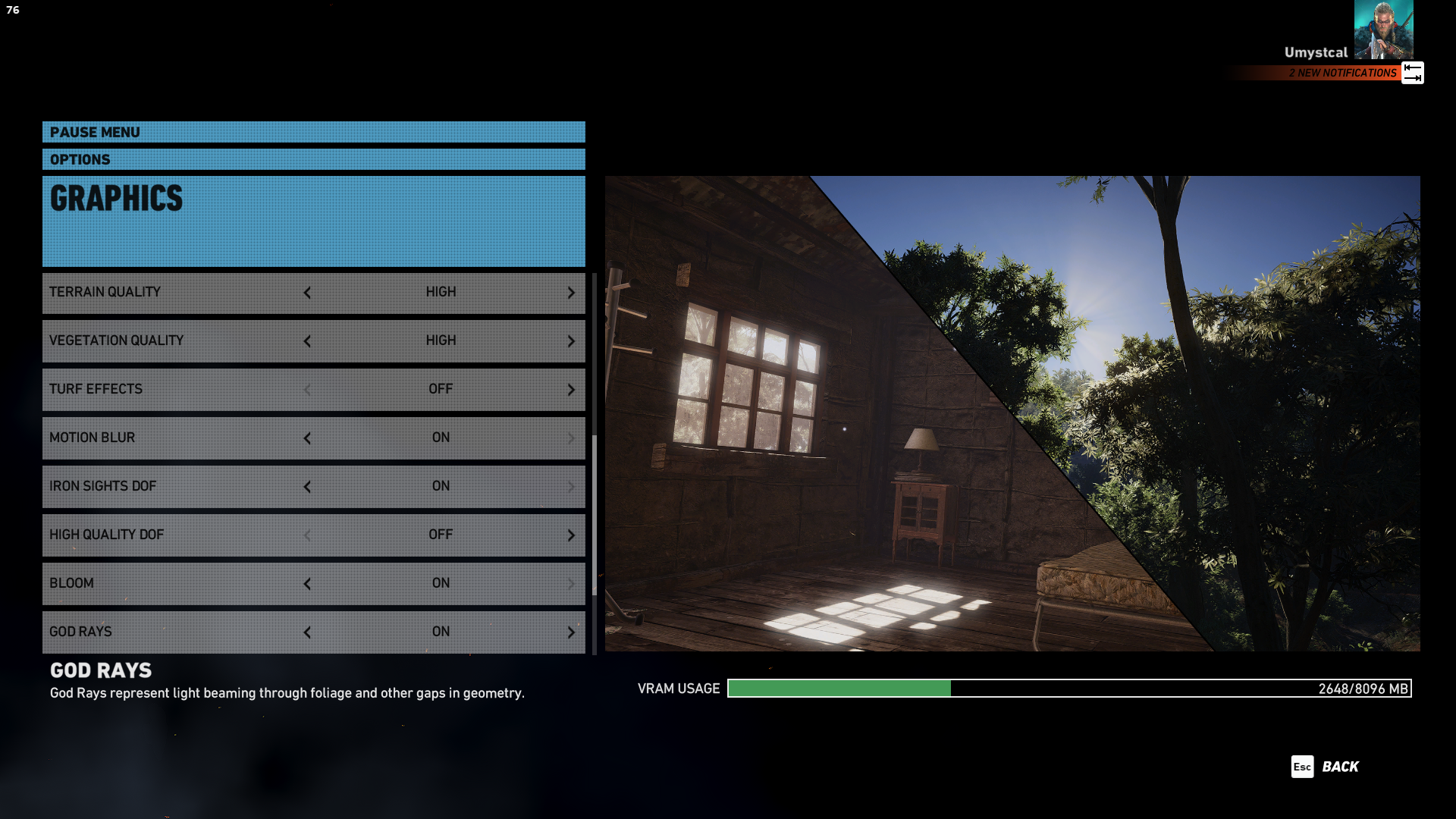
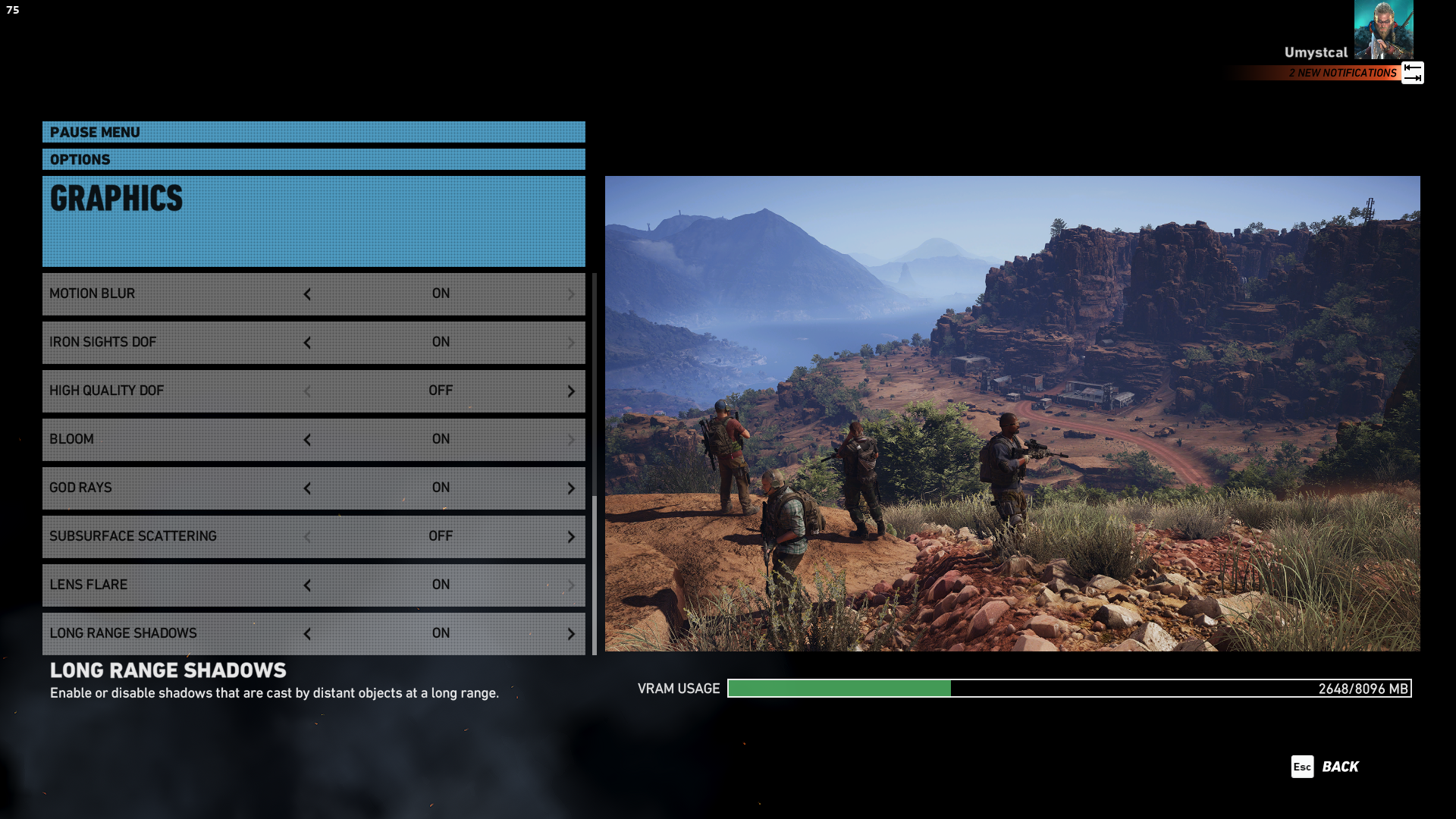
I'm experiencing frame rate drops in Tom Clancy's Ghost Recon Wildlands. I'm using an Intel Arc A750 Limited Edition. I've been having this issue since I purchased the graphics card about 1 years ago, but I'm only reporting it now. I would appreciate a solution if possible. I'll provide a YouTube link showing the frame rate drops in-game, the SSU report, and a screenshot of the game's graphics settings.
Link Copied

- Mark as New
- Bookmark
- Subscribe
- Mute
- Subscribe to RSS Feed
- Permalink
- Report Inappropriate Content
Hello HumbertoSilva,
Thank you for posting in Intel Communities.
To get a better understanding of the issue and be able to provide an effective recommendation, please help provide the missing key information here:
1) Please share your Power Supply make and model.
2) Describe the performance issue as best as you can.
- Per example: FPS drop when entering ‘x’ or ‘y’ section.
3) Submit CapFrameX capture data (.json files) reproducing the issue (frame rate drops).
- Capture data at least 3 times to define a good performance baseline.
CapFrameX Installation instructions:
- Go to https://www.capframex.com/download and download the latest version of CapframeX.
- Go to https://www.guru3d.com/files-details/rtss-rivatuner-statistics-server-download.html and download the latest version of RTSS.
- Unzip both installers and install them.
- Launch CapFrameX and then close it. This is so it creates the user Configuration folder.
- Download and unzip the file OverlayEntryConfiguration_0.json (attached in this post) with the recommended RTSS configuration.
- Paste this file to %userprofile%\Documents\CapFrameX\Configuration.
- In the Capture tab, set the "Capture time" to 0. This is to remove the preset limit in capture time.
- In the Overlay tab, uncheck "Auto-Disable OSD" and click the save icon.
Capturing the Performance Data:
- Open CapframeX and do NOT minimize or close it.
- Open the game and go to the part of the game you need to be to reproduce the issue. You should see the RTSS overlay in the top left corner of your screen, with the status "<game name> ready to capture…".
- Press F11 to start capturing data and reproduce the issue. The Status in the overlay will change to "Recording frametimes XX s".
- Once you have reproduced the issue, press F11 to finish the data capturing. The Status in the overlay will change to "Processing data".
- Back to CapFrameX, you can find all the data captures in the left panel of the Analysis tab. Clicking any one of these captures will display the results on the right.
- To export the data captured as a JSON file, right-click the capture and click on "Copy/paste recording file(s)".
I will wait for your reply.
Best regards,
JeanetteC.
Intel® Customer Support Technician


- Mark as New
- Bookmark
- Subscribe
- Mute
- Subscribe to RSS Feed
- Permalink
- Report Inappropriate Content
@JeanetteC_Intel wrote:Hello HumbertoSilva,
Thank you for posting in Intel Communities.
To get a better understanding of the issue and be able to provide an effective recommendation, please help provide the missing key information here:
1) Please share your Power Supply make and model.
2) Describe the performance issue as best as you can.
- Per example: FPS drop when entering ‘x’ or ‘y’ section.
3) Submit CapFrameX capture data (.json files) reproducing the issue (frame rate drops).
- Capture data at least 3 times to define a good performance baseline.
CapFrameX Installation instructions:
- Go to :https://www.capframex.com/download and download the latest version of CapframeX.
- Go to https://www.guru3d.com/files-details/rtss-rivatuner-statistics-server-download.html and download the latest version of RTSS.
- Unzip both installers and install them.
- Launch CapFrameX and then close it. This is so it creates the user Configuration folder.
- Download and unzip the file OverlayEntryConfiguration_0.json (attached in this post) with the recommended RTSS configuration.
- Paste this file to %userprofile%\Documents\CapFrameX\Configuration.
- In the Capture tab, set the "Capture time" to 0. This is to remove the preset limit in capture time.
- In the Overlay tab, uncheck "Auto-Disable OSD" and click the save icon.
Capturing the Performance Data:
- Open CapframeX and do NOT minimize or close it.
- Open the game and go to the part of the game you need to be to reproduce the issue. You should see the RTSS overlay in the top left corner of your screen, with the status "<game name> ready to capture…".
- Press F11 to start capturing data and reproduce the issue. The Status in the overlay will change to "Recording frametimes XX s".
- Once you have reproduced the issue, press F11 to finish the data capturing. The Status in the overlay will change to "Processing data".
- Back to CapFrameX, you can find all the data captures in the left panel of the Analysis tab. Clicking any one of these captures will display the results on the right.
- To export the data captured as a JSON file, right-click the capture and click on "Copy/paste recording file(s)".
I will wait for your reply.
Best regards,
JeanetteC.
Intel® Customer Support Technician
Is the power supply responsible for altering the FPS? I was using a regular prior but ow I shifted it towards 800 W.
- Mark as New
- Bookmark
- Subscribe
- Mute
- Subscribe to RSS Feed
- Permalink
- Report Inappropriate Content
Hi JeanetteC, thank you for your response.
* My power supply is a SuperFrame SF-B700FL.
* The FPS drops occur when my character enters a crowded area, like a village for example. It stabilizes a bit when I move away from the area and enter a forest.
* Following the step-by-step guide for installing CapFrameX and RTSS, it says "Download and unzip the file OverlayEntryConfiguration_0.json (attached in this post)", but there is no file attached to the post. Without it, I cannot proceed with data capture using the recommended RTSS configuration.
Sincerely,
HumbertoSilva.
- Mark as New
- Bookmark
- Subscribe
- Mute
- Subscribe to RSS Feed
- Permalink
- Report Inappropriate Content
Hi HumbertoSilva,
My apologies for missing out on attaching the file. Sharing it here.
I will wait for your reply.
Best regards,
Jeanette C.
Intel® Customer Support Technician
- Mark as New
- Bookmark
- Subscribe
- Mute
- Subscribe to RSS Feed
- Permalink
- Report Inappropriate Content
- Mark as New
- Bookmark
- Subscribe
- Mute
- Subscribe to RSS Feed
- Permalink
- Report Inappropriate Content
Hi HumbertoSilva,
Thank you for sharing the details I requested. I will proceed in further checking on this and will post an update once it's available.
Best regards,
JeanetteC.
Intel® Customer Support Technician
- Mark as New
- Bookmark
- Subscribe
- Mute
- Subscribe to RSS Feed
- Permalink
- Report Inappropriate Content
Hello HumbertoSilva,
Good day.
I have reviewed the Capframex data and it appears that the game is performing well. To assist further, could you share the following answers and proceed with the suggested actions below?
1. What is your expected FPS for this game?
2. Are you comparing your system's performance with other computers or graphics cards? If so, can you share what FPS are you trying to achievi and which graphics card or computer you are using?
3. Additionally, to help troubleshoot the issue, please update your graphics graphics driver to version 32.0.101.6129_101.6045. Before installing the new driver, kindly ensure to perform a clean installation using DDU.
Please check this article on "Low Performance on Ghost Recon Wildlands* with Intel® Arc™ Graphics" for further guidance.
Best regards,
JeanetteC.
Intel® Customer Support Technician
- Mark as New
- Bookmark
- Subscribe
- Mute
- Subscribe to RSS Feed
- Permalink
- Report Inappropriate Content
Hello HumbertoSilva,
Good day!
I am waiting for an update regarding the details I requested to further check this issue. Kindly let me know about this information so I can identify the next steps that need to be taken to solve this issue.
I will wait for your reply.
Best regards,
Jeanette C.
Intel® Customer Support Technician
- Mark as New
- Bookmark
- Subscribe
- Mute
- Subscribe to RSS Feed
- Permalink
- Report Inappropriate Content
Hi Jeanette,
I apologize for the delay in responding. I updated my graphics card driver as suggested, and so far, I haven't encountered any more issues with the game's performance. Thank you for your assistance.
Sincerely,
HumbertoSilva.
- Mark as New
- Bookmark
- Subscribe
- Mute
- Subscribe to RSS Feed
- Permalink
- Report Inappropriate Content
Hello HumbertoSilva,
Good day.
It's good to hear that the issue is finally fixed with the latest driver version 32.0.101.6129_101.6045 clean installation using DDU.
I will proceed in closing this thread now. Should you need assistance in the future, please submit a new question as this thread will no longer be monitored.
Sincerely,
JeanetteC.
Intel Customer Support Technician

- Subscribe to RSS Feed
- Mark Topic as New
- Mark Topic as Read
- Float this Topic for Current User
- Bookmark
- Subscribe
- Printer Friendly Page