
- Marquer comme nouveau
- Marquer
- S'abonner
- Sourdine
- S'abonner au fil RSS
- Surligner
- Imprimer
- Signaler un contenu inapproprié
I am trying to connect my laptop to a TV. I can't shrink the screen size using Intel Graphics Command Center as far as I have seen. I know I was able to do exactly that using the old Intel Graphics Control Panel. Is there any way to do this in Command Center, or is there another app (I don't care from who) that can shrink a display to match the corners correctly?
Lien copié

- Marquer comme nouveau
- Marquer
- S'abonner
- Sourdine
- S'abonner au fil RSS
- Surligner
- Imprimer
- Signaler un contenu inapproprié
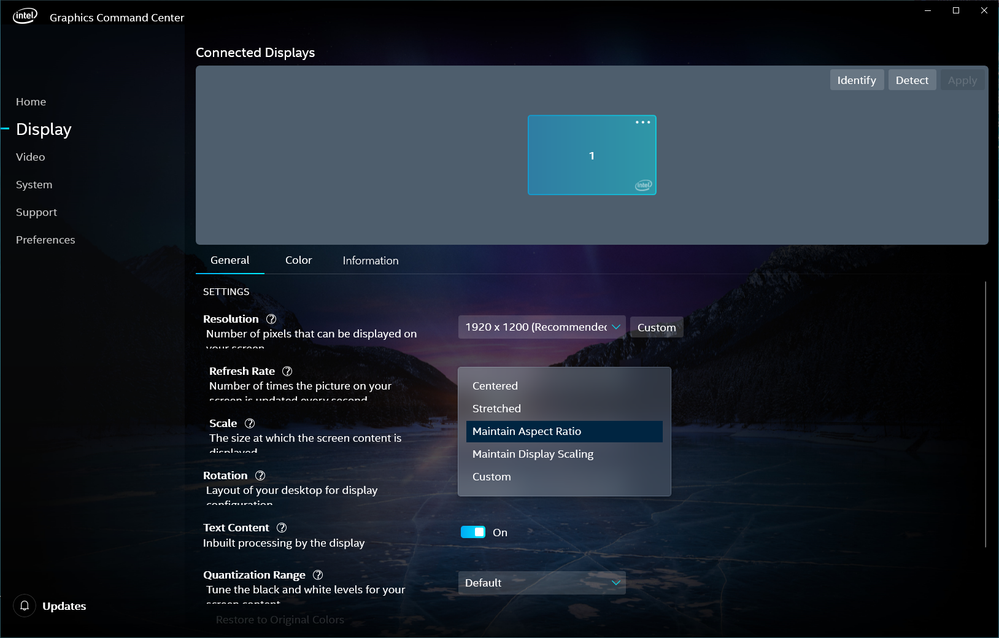
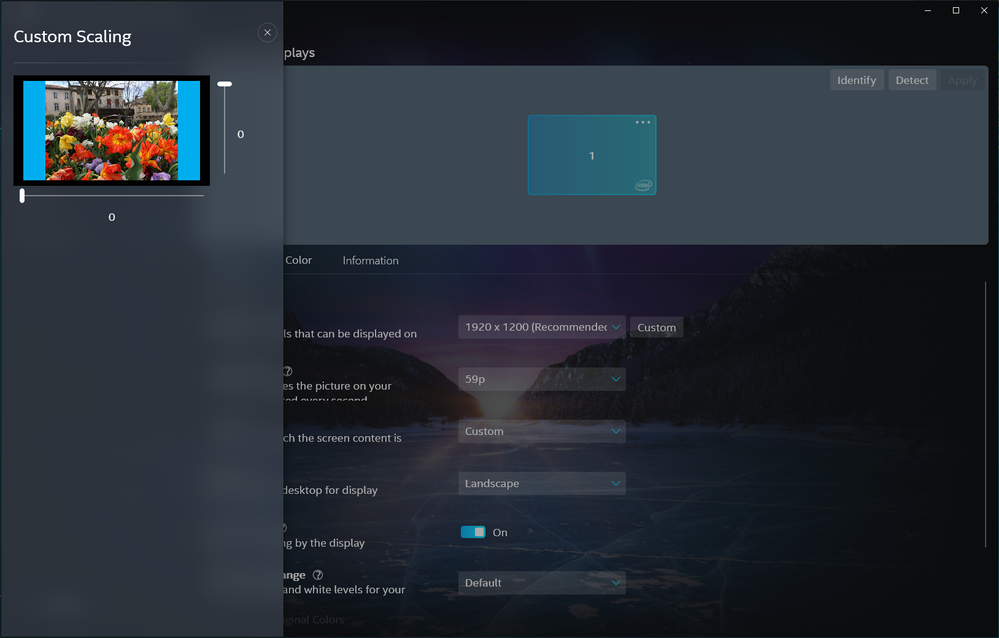
- Using Intel Graphics Command Center: Display > Scale > Custom - adjust the desired size.
- If you prefer, you may still download the Intel Graphics Control Panel from the Microsoft Store: https://www.microsoft.com/en-as/p/intel-graphics-control-panel/9ndlclmmtmrc?activetab=pivot:overviewtab
Leon
- Marquer comme nouveau
- Marquer
- S'abonner
- Sourdine
- S'abonner au fil RSS
- Surligner
- Imprimer
- Signaler un contenu inapproprié
First of all, I'd like to thank you for responding to my question. People like you make the world go round.
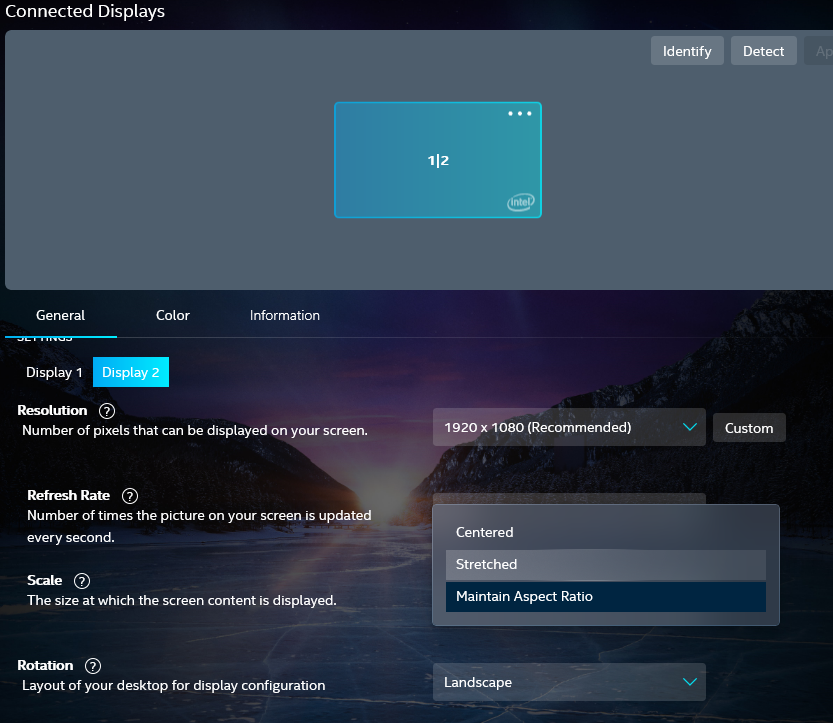
I've posted a picture below of what my scale setting looks like. As you can see there isn't a "custom" setting there, and the rest make no difference at all on the main screen.
Your second suggestion also cannot be used as intel graphics control panel is no longer useable with the new intel graphics drivers. I know that screen shrinking is possible because of that program had a feature for it, but when I updated my computer new drivers were installed and I can't use the old program anymore.
Good try though
- Marquer comme nouveau
- Marquer
- S'abonner
- Sourdine
- S'abonner au fil RSS
- Surligner
- Imprimer
- Signaler un contenu inapproprié
Hello @ABenz4 ,
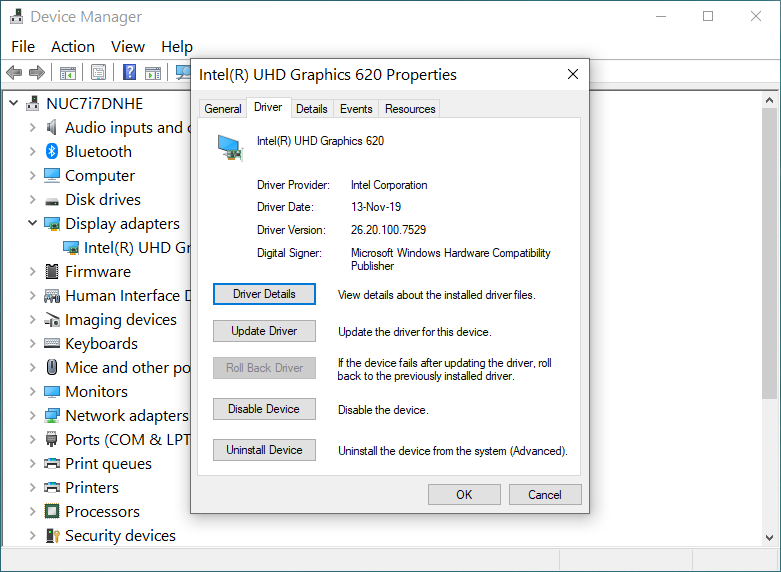
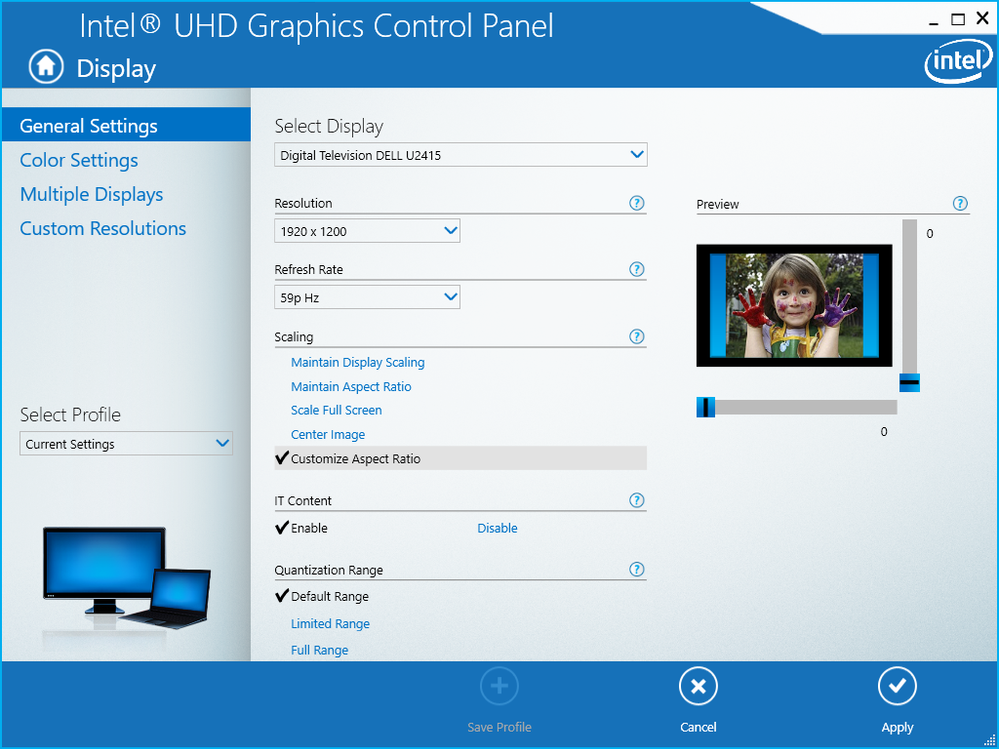
I'm sorry that you can't execute my advice on your computer. I checked this on NUC7i7DNHE and both methods works. I've on this computer installed the new DCH driver, Intel Graphics Command Center and Inte Graphics Control Panel. Please see the attached images.
Leon

- Marquer comme nouveau
- Marquer
- S'abonner
- Sourdine
- S'abonner au fil RSS
- Surligner
- Imprimer
- Signaler un contenu inapproprié
Follow these steps to change the display resolution:
- Right-click on your Desktop (or simultaneously press Ctrl, Alt, F12) and select Graphics Properties.
- When the Intel® Graphics Control Panel displays, go to the Resolution section.
- Click Apply.
I hope this information helps!
Regards,
Lewis
- Marquer comme nouveau
- Marquer
- S'abonner
- Sourdine
- S'abonner au fil RSS
- Surligner
- Imprimer
- Signaler un contenu inapproprié
I've tried all possible resolutions, and there is always some kind of clipping involved. I've also tried the best looking resolutions while also resizing different things on the screen (text, apps, etc.). This also does not work.
Thanks for trying.

- Marquer comme nouveau
- Marquer
- S'abonner
- Sourdine
- S'abonner au fil RSS
- Surligner
- Imprimer
- Signaler un contenu inapproprié
@ABenz4 You have an overscan problem. On the TV setup, look for video settings, and look for something like Native/Natural/etc for the display mode.
Doc
- Marquer comme nouveau
- Marquer
- S'abonner
- Sourdine
- S'abonner au fil RSS
- Surligner
- Imprimer
- Signaler un contenu inapproprié
This worked, Thanks,
Still kind of miffed that they removed the ability to shrink the screen in this new app. Oh well, at least we found a solution. Thanks again!
- Marquer comme nouveau
- Marquer
- S'abonner
- Sourdine
- S'abonner au fil RSS
- Surligner
- Imprimer
- Signaler un contenu inapproprié
Glad you have it working. Curious - what make and model TV do you have? I have the problem on Toshiba TVs.
Doc

- S'abonner au fil RSS
- Marquer le sujet comme nouveau
- Marquer le sujet comme lu
- Placer ce Sujet en tête de liste pour l'utilisateur actuel
- Marquer
- S'abonner
- Page imprimable