
- Mark as New
- Bookmark
- Subscribe
- Mute
- Subscribe to RSS Feed
- Permalink
- Report Inappropriate Content
Hi!
I have an ASUS GL552VW notebook, with the Intel HD Graphics 530. OS: Microsoft Windows 10 Version 1511 [Version 10.0.10586] 64 bits
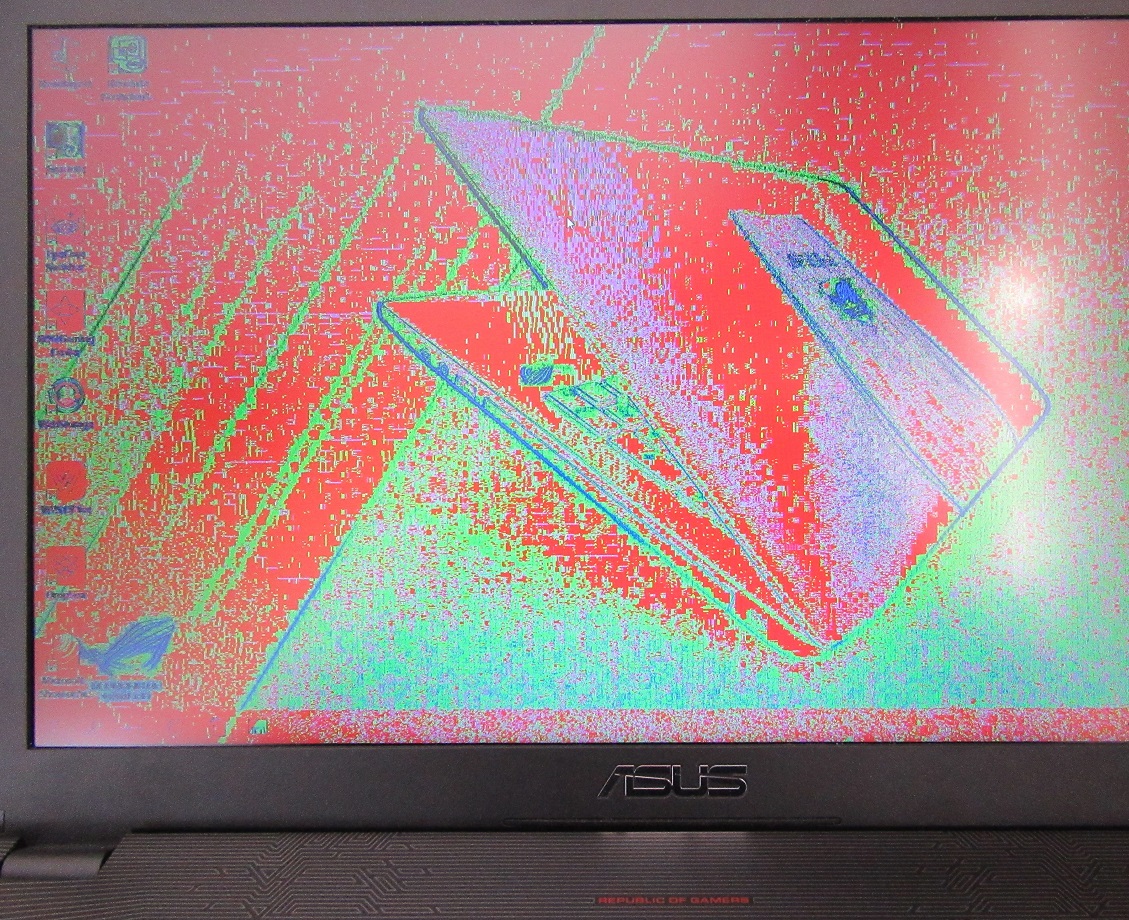
I had (sometimes) color problems after turning off the screen, since the Intel Graphics Driver, Version: Beta 15.40.18.4380 | Date: 2/5/2016. Please see picture below.
I tried all available Intel Graphics Drivers:
- (..)
- Version: 15.40.14.4352 | Date: 12/23/2015: Without the color problem after turning off the screen.
- Version: Beta 15.40.18.4380 | Date: 2/5/2016: With the color problem after turning off the screen.
- (...)
- Version: Beta 15.40.26.4474 | Date: 6/24/2016: With the color problem after turning off the screen.
Link Copied
- « Previous
-
- 1
- 2
- Next »

- Mark as New
- Bookmark
- Subscribe
- Mute
- Subscribe to RSS Feed
- Permalink
- Report Inappropriate Content
Hi Greaser,
I am sorry for the inconvenience. I double checked Asus website and the latest driver available is 4454 (you already mentioned it is not working). In your case it will be necessary to request a newer customized driver to Asus. They need to fix the compatibility issue.
Mike C

- Mark as New
- Bookmark
- Subscribe
- Mute
- Subscribe to RSS Feed
- Permalink
- Report Inappropriate Content
I'm using this driver for my gl552vw-dh71. You could try updating to this and see if it resolves your issue.
20.19.15.4463
don't run the exe file
but right click the inf file within the extracted folder and click install.
- Mark as New
- Bookmark
- Subscribe
- Mute
- Subscribe to RSS Feed
- Permalink
- Report Inappropriate Content
Hi dinoshan,
That's right the latest graphics driver is 4463. Intel has a Beta option version 4474
https://downloadcenter.intel.com/product/88345/Intel-HD-Graphics-530-for-6th-Generation-Intel-Core-Processors https://downloadcenter.intel.com/product/88345/Intel-HD-Graphics-530-for-6th-Generation-Intel-Core-Processors
The steps for the manual installation are the following:
1-Download the zip file of the driver from downloadcenter, unzip and keep the file on the desktop.
2-Turn Internet connection off
3-Go to device manager>Display Adapter, right click Intel HD graphics and select uninstall driver (check delete box)
4-Restart the computer
5-Go to device manager>Display Adapter, right click over Microsoft generic driver select Update driver, browse search for graphics folder at desktop (step 1)
6-Restart system and review graphics driver version installed from device manager or Graphics control Panel.
Mike C

- Subscribe to RSS Feed
- Mark Topic as New
- Mark Topic as Read
- Float this Topic for Current User
- Bookmark
- Subscribe
- Printer Friendly Page
- « Previous
-
- 1
- 2
- Next »